Docker Multiple Contexts
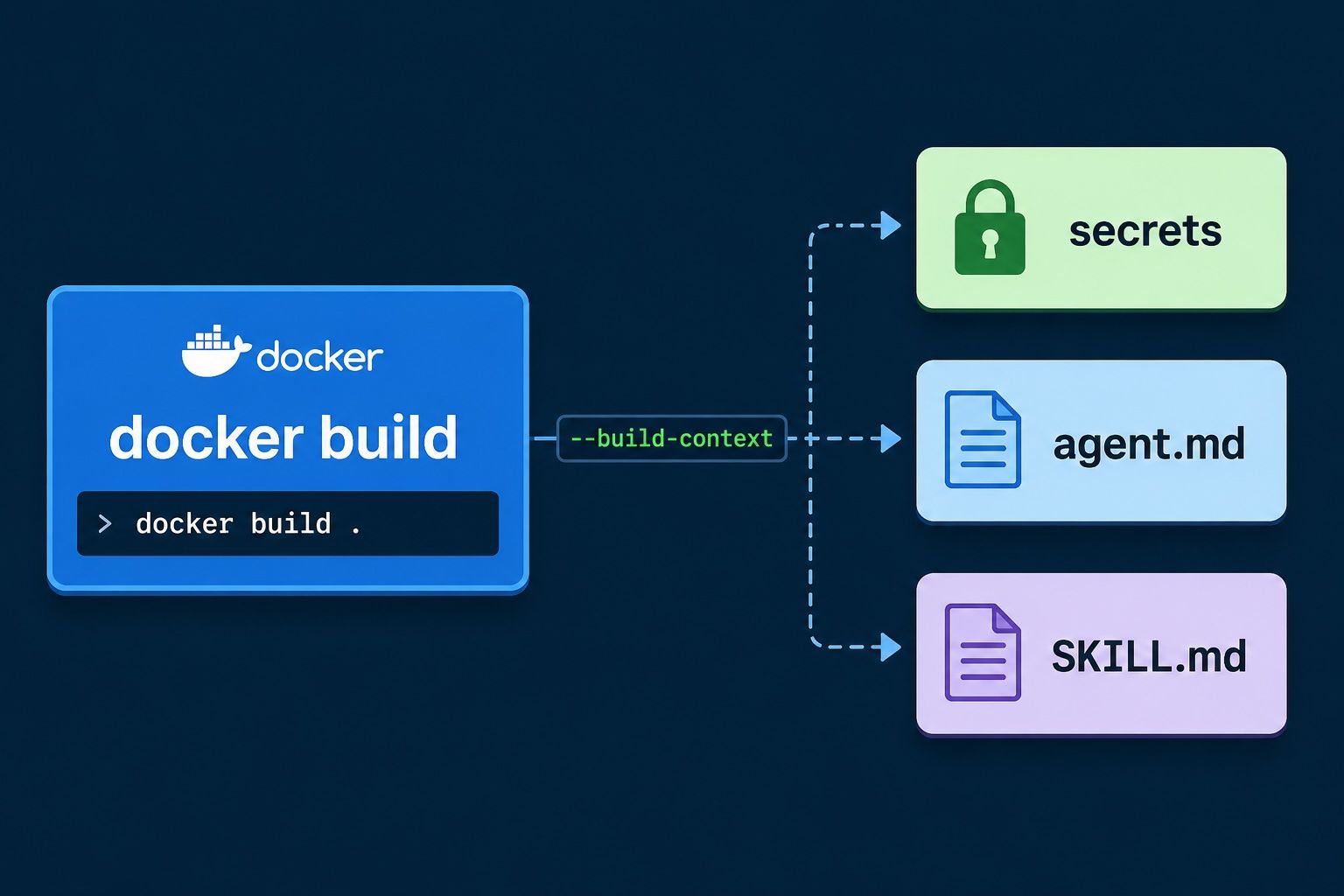
Docker build can handle multiple contexts. Most people believe it can only handle one. This tool can be a game changer if you have things like shared secrets, files in a central repo that you need in your project, or other references that you don’t want to include in your project context. And it can all be accomplished with the flag --build-context.
Key Takeaways
- Docker build supports multiple contexts via the
--build-contextflag, not just one. - Named contexts let you reference files from outside your main build context (shared secrets, central repo files, AI agents and skills).
- You need BuildKit and the
# syntax=docker/dockerfile:1parser directive to use them. - This works for regular
docker buildcommands and Dev Containers’build.options. - It keeps a single source of truth for shared files and reduces maintenance.
This isn’t new functionality but I just learned about it last week. I have been working to make a system where:
- I have shared AI agent files that I use in multiple repos
- I have shared AI skill files that I use in multiple repos
- I can keep secrets, shared config, etc outside of individual repos (for security and so I don’t have to maintain values across them all) The ability to attach multiple contexts to a Docker build solves all of these problems. Not just for individual repos, but also for dev containers! Let’s see how it works.
Common Use Cases for Docker Multiple Contexts
Before we dig into the mechanics, here are the scenarios where using Docker multiple contexts shines:
- Shared secrets — Keep credentials like API keys or SSH keys in a separate, untracked directory and mount them into a build without ever committing them to your repo.
- Central repo files — Reference config, certificates, or templates that live in one canonical repository so you don’t have to copy them into every project.
- Shared AI agents and skills — Mount agent definitions and skill files used by Copilot, Claude, or Codex into a build or Dev Container so they stay in sync across all your repos.
- Build caches and derived artifacts — Pull prebuilt outputs from another context to speed up local and CI builds.
Using Docker Multiple Contexts (Named Contexts)
If you go to the Docker build docs, the list of arguments doesn’t include --build-context. You have to go to Named Contexts or docker buildx build in order to find this information. The --build-context argument allows you to pass in one or more ‘Named Contexts’ that you can then use in your Dockerfile. For example, if I use the command:
docker build -f ApiDockerFile --build-context secrets=../secrets example .
I can then reference this in my Dockerfile like so:
# syntax=docker/dockerfile:1
FROM base
WORKDIR /app

COPY --from=secrets shared-secrets/ secrets
Take special note of the line #syntax=docker/dockerfile:1
This is a parser directive that tells the Docker BuildKit image builder which version of the Dockerfile syntax to use. But by doing this, you can attach files not in your main context to your docker build and use them.
Docker Build Multiple Context Applications
So, this is cool, but why is it useful? As I mentioned, I’ve been creating a system where I have a few centralized special agents that I want to be available across projects. But the majority of these projects are run using Dev Containers and don’t have access to any shared files. And the last thing I want to do is to copy agent files across all my projects and have to keep them in sync.
But with --build-context, I can now do something like this in my devcontainer.json:
Dev Container with Dockerfile
"build": {
    // Path is relative to the devcontainer.json file.
    "dockerfile": "../src/website/Dockerfile",
    "context": "..",
    "target": "dev",
    "options": ["--build-context", "local-github=/Users/myuser/.copilot"]
},
Special note: The path to your user directory cannot be ~; it must be fully defined
Dev Container with Docker Compose
Docker Compose also supports multiple contexts through the use of the additional_contexts key in your compose file.
{
  "name": "my-site",
  "dockerComposeFile": "../docker-compose.yml",
  "service": "website",
}services:
dev-website:
container_name: website
build:
context: .
dockerfile: Dockerfile
additional_contexts:
local-github: /Users/myuser/.copilot
command: sleep infinity
restart: unless-stoppedWith this, when I build my dev container, I can mount my shared agents and skills by using:
COPY --from=local-github agents/ /home/vscode/.copilot/agents
COPY --from=local-github skills/ /home/vscode/.copilot/skills
I am on a Mac, so be sure to update your path to be correct for your OS. And if you are using Claude or Codex, substitute in either .claude or .codex for .copilot.
Now I have any shared agents or skills available in my dev containers with no additional upkeep needed. The only caveat is that, since these files are built into your container, you will need to rebuild your container when you create a new agent or skill that you want it to use. But needing to run one command vs needing to keep a bunch of files in sync is a huge win as far as I am concerned.
Final Thoughts
AI continues to move at breakneck speeds, and workflows continue to evolve with it. But just because things are moving quickly doesn’t mean we should forget the lessons software engineering has taught us up until this point. Having one source of truth, protecting secrets, and making maintenance as easy as possible continue to be high priorities. Using Docker with multiple contexts is another tool in your tool belt to accomplish this.